
Asset Gallery
All the images for your event website, in one place. Upload once, reuse anywhere in the Page Builder.
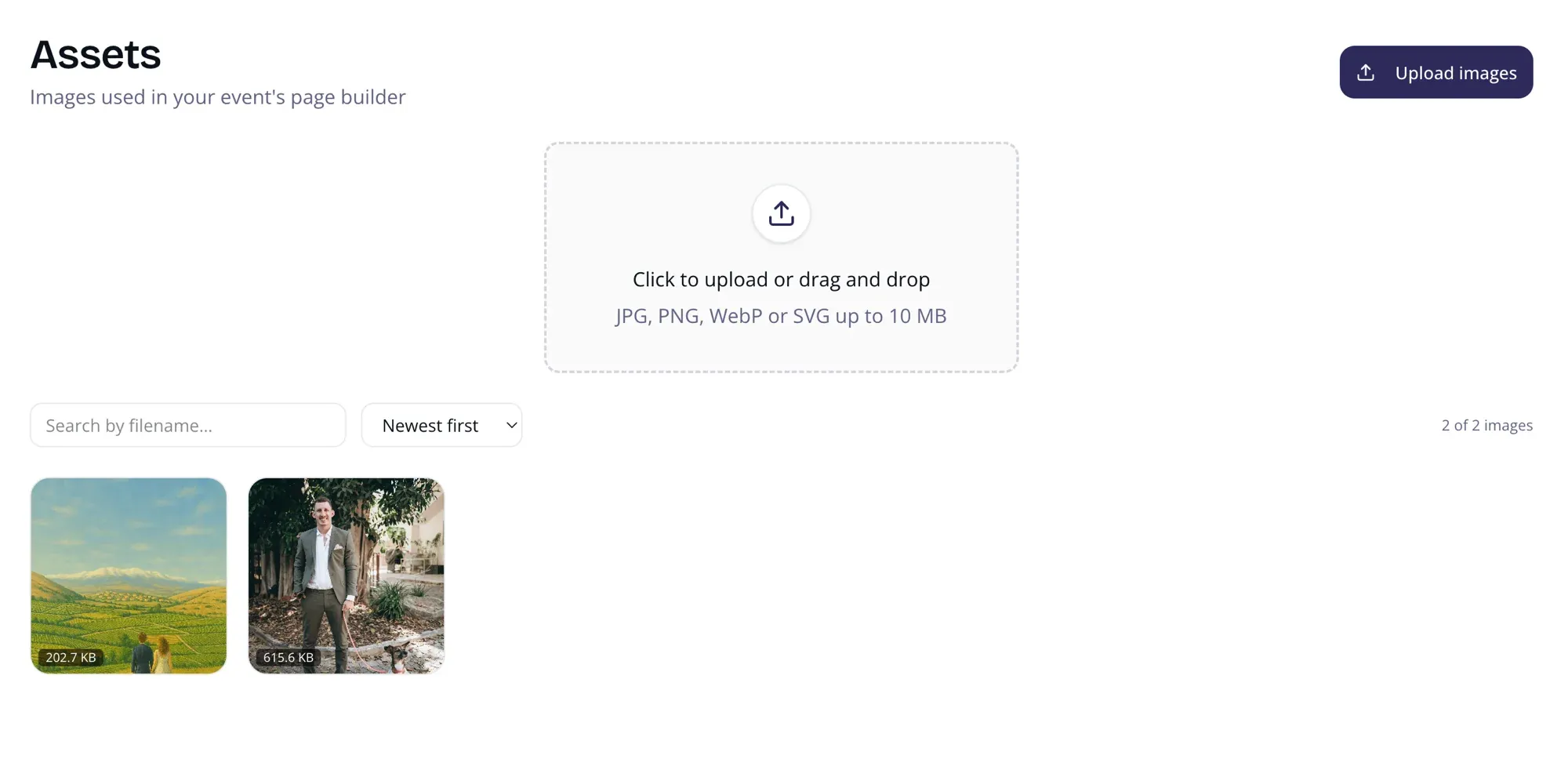
Assets Page
Section titled “Assets Page”Found under Website → Assets and Media → Assets in the event dashboard.
- Upload — Drag images onto the drop zone or click Upload. Files are automatically optimized to WebP (SVGs are kept as-is). Supports JPG, PNG, WebP, and SVG up to 10 MB.
- Browse — Responsive grid showing all uploaded images with file size badges.
- Copy URL — Hover any image and click Copy URL to get the public link.
- Delete — Hover and click Delete. Requires a second click to confirm.
- Search — Filter by filename in real time.
- Sort — Order by Newest, Oldest, Largest, or Smallest.
Gallery Picker (Page Builder)
Section titled “Gallery Picker (Page Builder)”When editing an image field in the page builder, a Browse gallery button opens a modal picker.
- Displays all uploaded assets in a 4-column grid
- Click to select (blue ring + checkmark). Double-click to apply immediately.
- Search by filename to find a specific image
- Upload new images directly from the picker
- Click Use image to apply
Storage
Section titled “Storage”Assets are private to your event — only team members with access can view or delete them.